Theming the Patient Portal
This guide shows how to give the patient portal your practice’s look: its colors, font, corner radius, the word it uses for the person who signs in, and your own CSS. Each attribute has a screenshot that shows what it changes.
How theming works #
- A patient opens a portal page, the login page included.
- Canvas sends the
PATIENT_PORTAL__GET_THEME_CONFIGURATIONevent to your plugin. - Your handler returns one
PatientPortalThemeeffect with the attributes you want to change. - Canvas applies the theme before the page appears.
Every attribute is optional. An attribute you leave unset keeps the portal’s default look, and a handler that returns nothing keeps the default theme. If your plugin is disabled or raises an error, the portal shows its default theme.
The theme also applies in pop-up windows, such as questionnaire forms and the Session Expired notice.
Canvas caches each theme for 60 seconds, so a change can take up to a minute to appear.
For the full list of attributes and validation rules, see Theme the Patient Portal in the SDK reference.
Build a theme plugin #
Step 1: Initialize a plugin #
Create a plugin with the Canvas CLI:
canvas init
Step 2: Register a handler for the theme event #
In CANVAS_MANIFEST.json, register a handler for PATIENT_PORTAL__GET_THEME_CONFIGURATION:
{
  "components": {
    "handlers": [
      {
        "class": "my_portal_theme.handlers.theme:PortalTheme",
        "description": "Gives the patient portal its theme",
        "data_access": {
          "event": "PATIENT_PORTAL__GET_THEME_CONFIGURATION",
          "read": [],
          "write": []
        }
      }
    ]
  }
}
Step 3: Return the theme #
The handler returns a PatientPortalTheme effect:
from canvas_sdk.effects import Effect
from canvas_sdk.effects.patient_portal.theme import PatientPortalTheme
from canvas_sdk.events import EventType
from canvas_sdk.handlers import BaseHandler


class PortalTheme(BaseHandler):
    """Give the patient portal the practice's look."""

    RESPONDS_TO = EventType.Name(EventType.PATIENT_PORTAL__GET_THEME_CONFIGURATION)

    def compute(self) -> list[Effect]:
        """Return the theme."""
        return [
            PatientPortalTheme(
                brand_color="#0F766E",
                menu_background_color="#134E4A",
                menu_selected_background_color="#115E59",
                menu_text_color="#F0FDFA",
                page_background_color="#F0FDFA",
                corner_radius=10,
                font_family="Nunito",
                font_source="https://fonts.googleapis.com/css2?family=Nunito:wght@400;600&display=swap",
                person_word="member",
            ).apply()
        ]
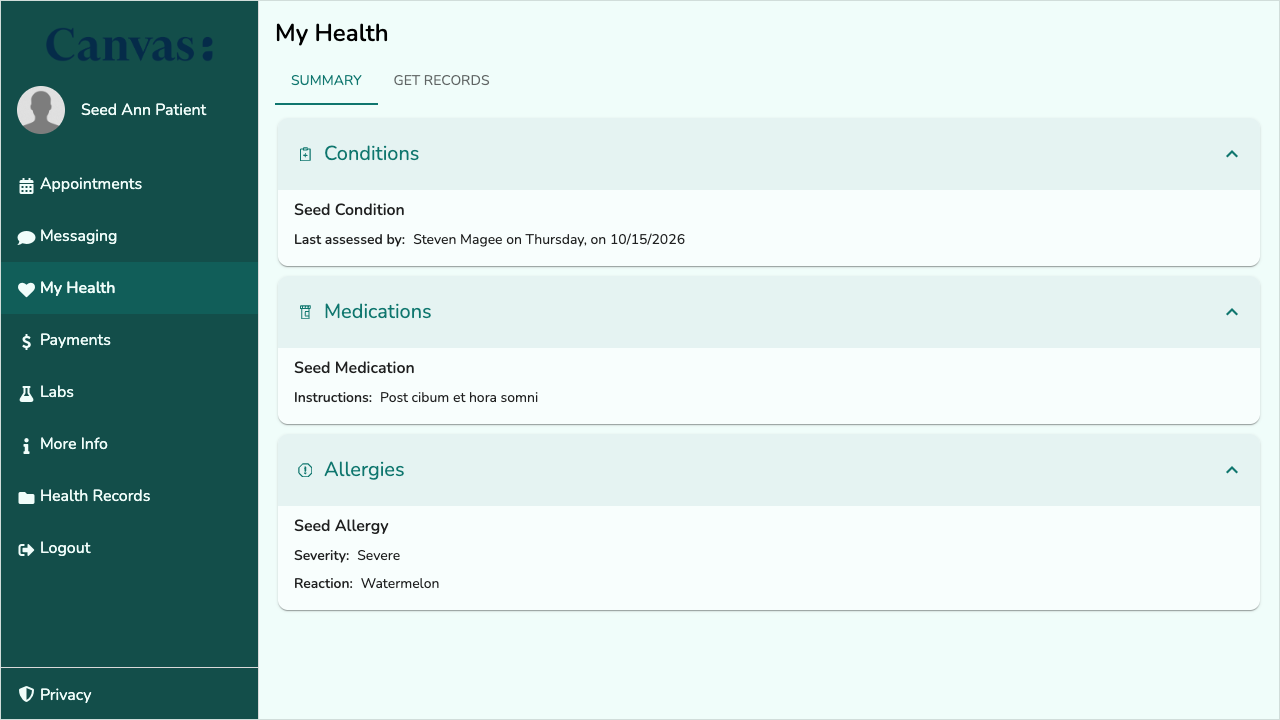
Step 4: Install and check #
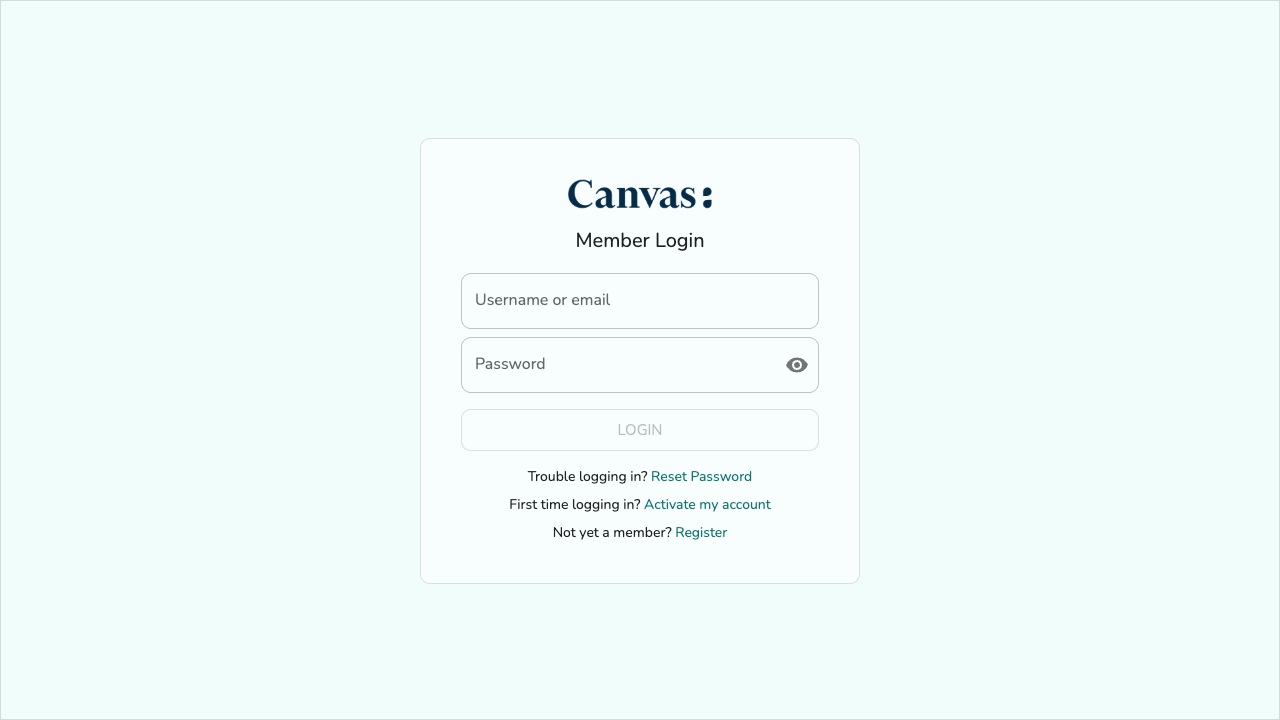
Install the plugin, then open the portal. Within a minute, every portal page shows the theme, the login page included:
canvas install my_portal_theme
What each attribute changes #
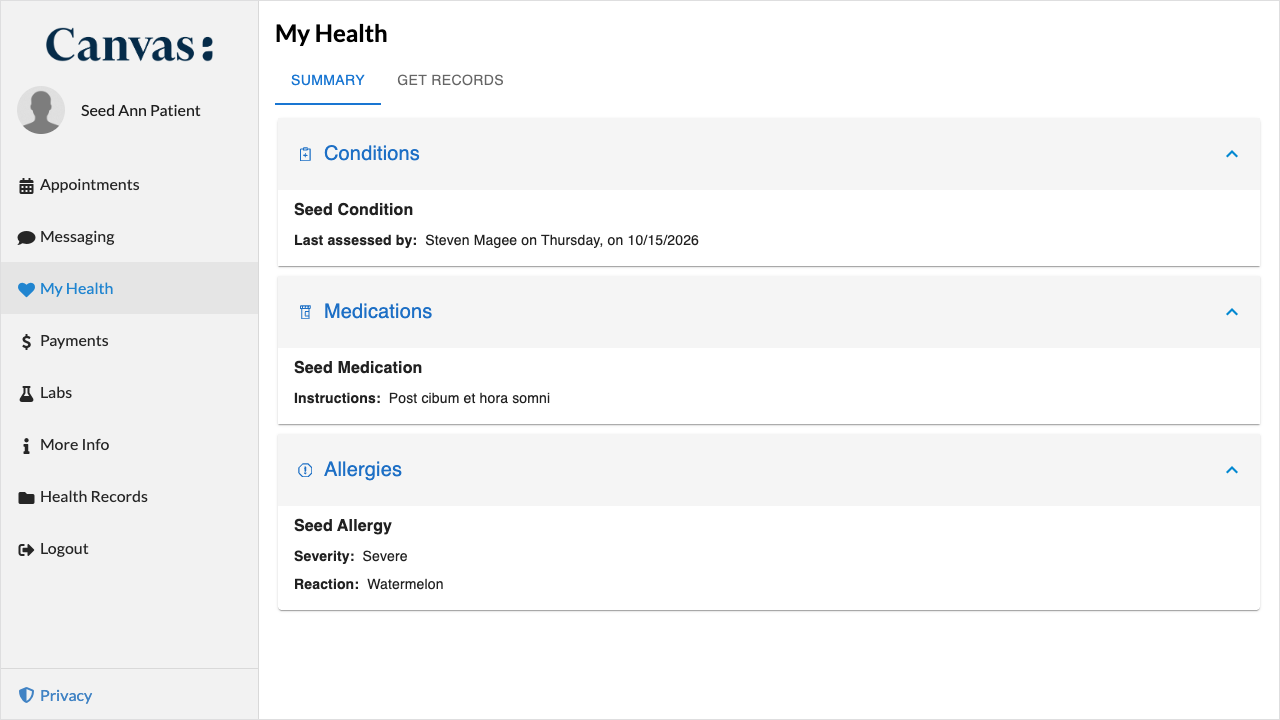
The screenshots below each set one attribute. For comparison, this is the portal with no theme:
brand_color #
The practice’s main color, as a six-digit hex color.
PatientPortalTheme(brand_color="#6D28D9")
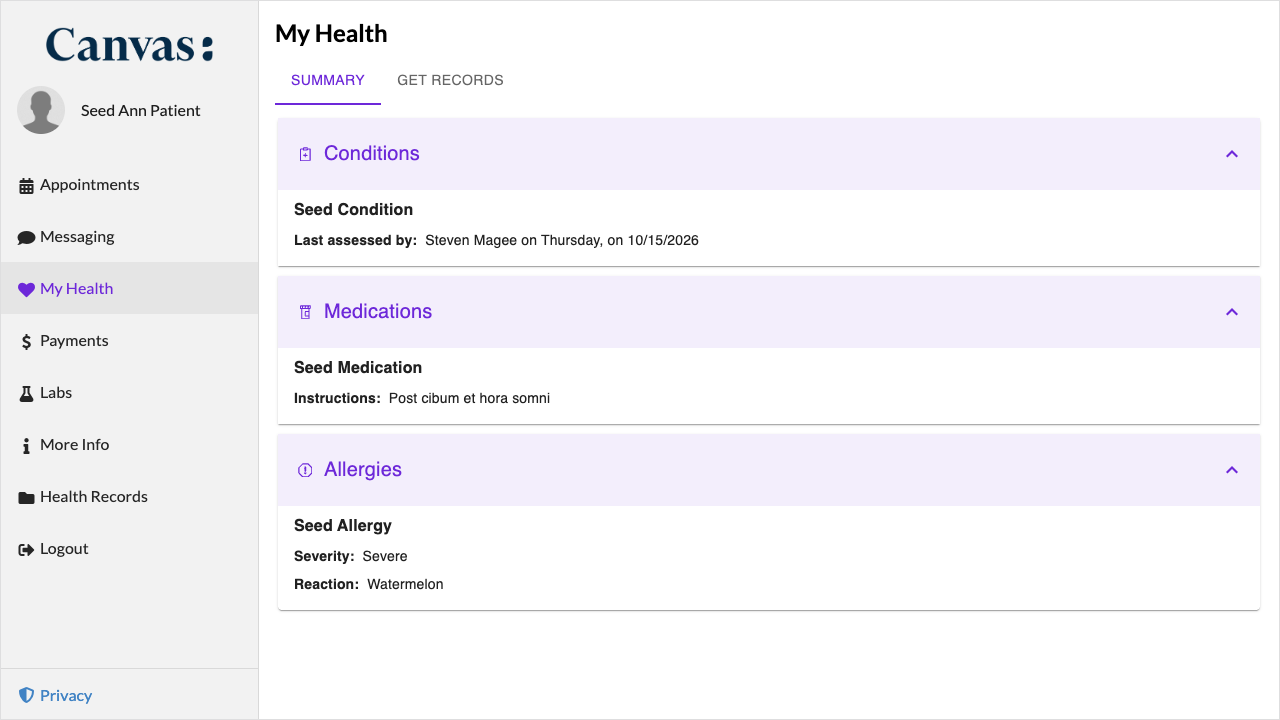
It changes:
- Links, such as the phone number on Payments and the login page links.
- Tabs and their underline, such as Summary and Get Records on My Health.
- Primary buttons, such as Book Appointment, and sent message bubbles.
- Section and accordion titles, their icons and their expand arrows.
- Section and accordion header bands, which take a light tint of the brand.
- The selected menu item’s text and icon, when the menu keeps its default background.
- Checkboxes, focus rings and other controls that use the primary color.
menu_background_color #
The background of the left menu on desktop and of the slide-out menu on phones.
PatientPortalTheme(menu_background_color="#1E3A8A")
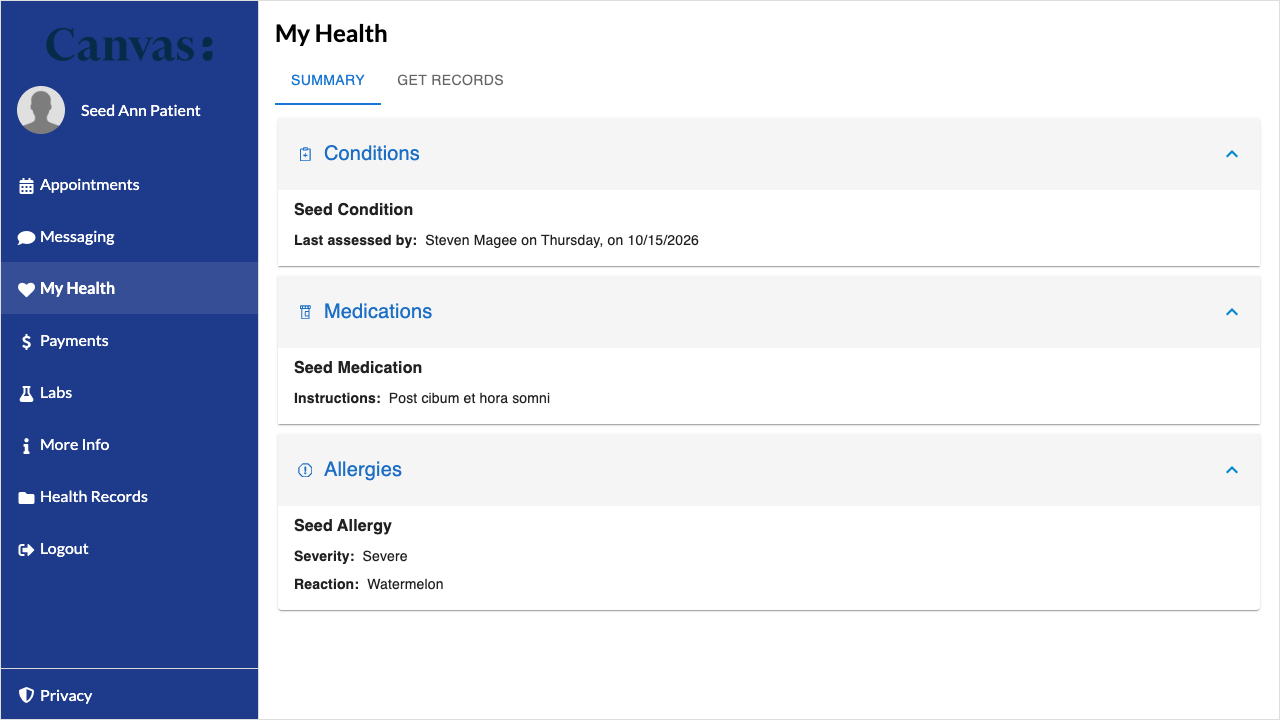
When you set only the background, the portal picks the rest for you:
- The menu text, the icons, the patient’s name and the Privacy link become white on a dark background or dark on a light one.
- The selected menu item gets a slightly lighter or darker shade of the background, and its label turns bold.
menu_text_color and menu_selected_background_color #
Set these to choose the menu text and the selected item’s background yourself, instead of letting the portal derive them.
PatientPortalTheme(
    menu_background_color="#1E3A8A",
    menu_text_color="#FDE68A",
    menu_selected_background_color="#1D4ED8",
)
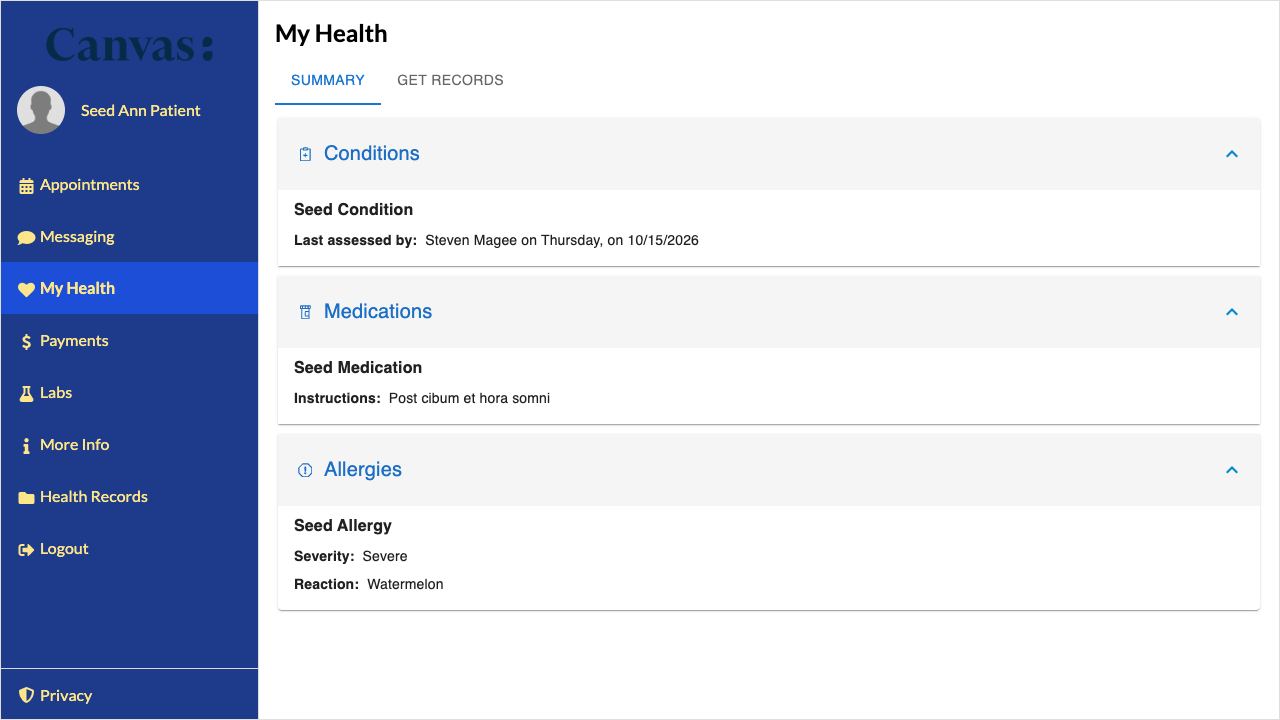
With a custom menu background, the selected item draws its text in menu_text_color. With the default menu background, it draws its text in brand_color.
page_background_color #
The background behind every portal page, the login page included.
PatientPortalTheme(page_background_color="#FEF3C7")
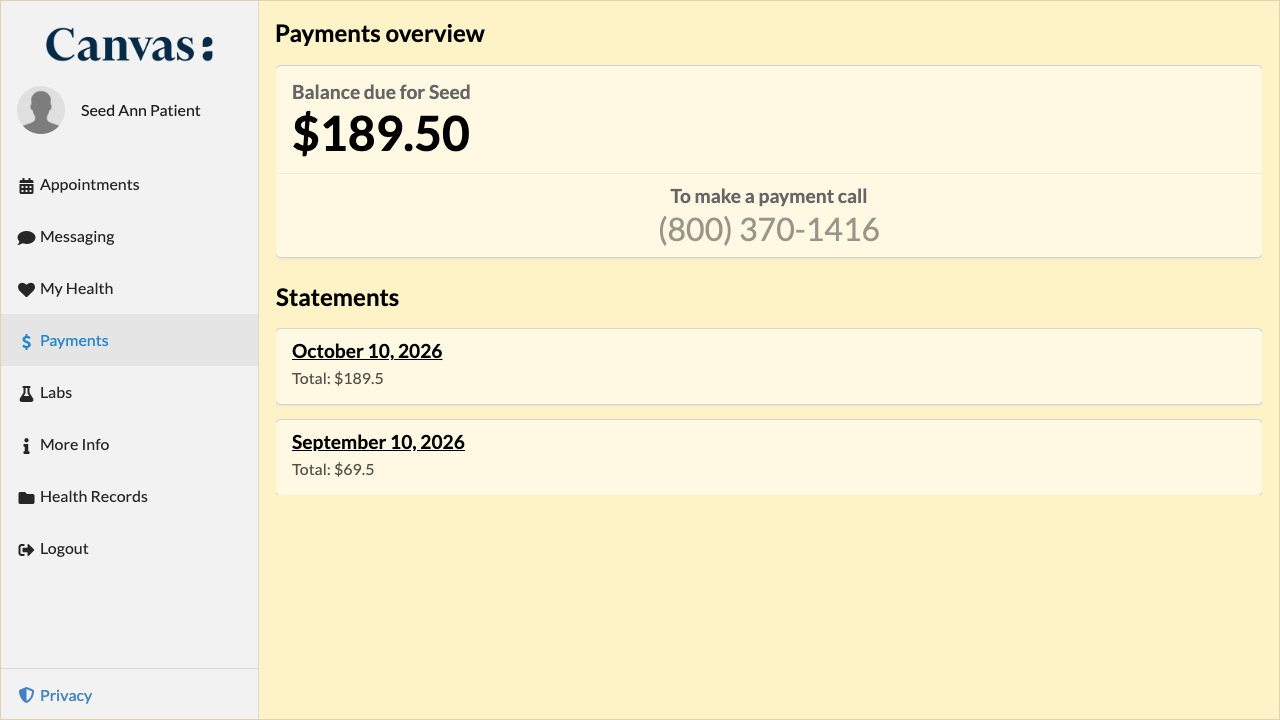
Cards and panels get a lighter version of the page color, halfway to white, so they still stand out from the page. The bar behind the message box on Messaging takes the page color.
corner_radius #
The corner radius, in pixels, from 0 to 24.
PatientPortalTheme(corner_radius=20)
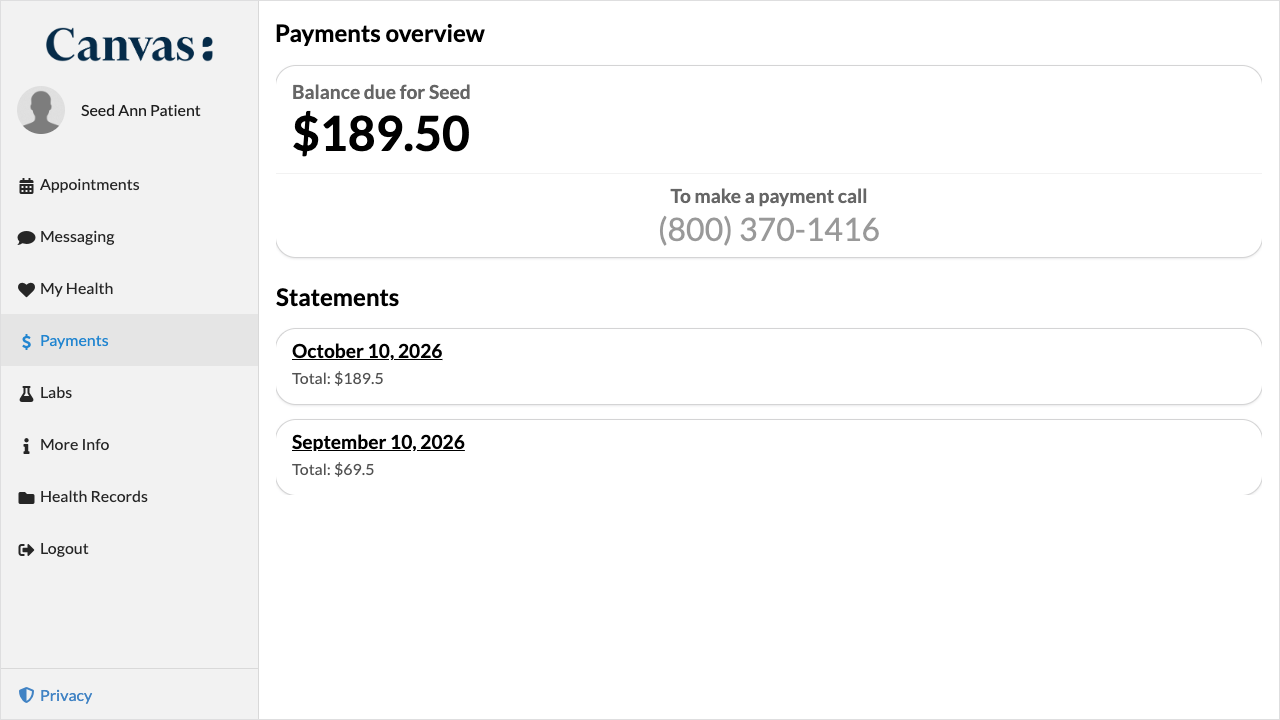
It rounds cards, panels, accordions, buttons, text fields and the login card. Shapes that are round by design keep their shape: avatars, round icon buttons and pill-shaped labels. The menu always keeps square corners.
font_family and font_source #
The font for the whole portal. font_family is the family name, and font_source is the Google Fonts stylesheet that loads it.
PatientPortalTheme(
    font_family="Lora",
    font_source="https://fonts.googleapis.com/css2?family=Lora:wght@400;600&display=swap",
)
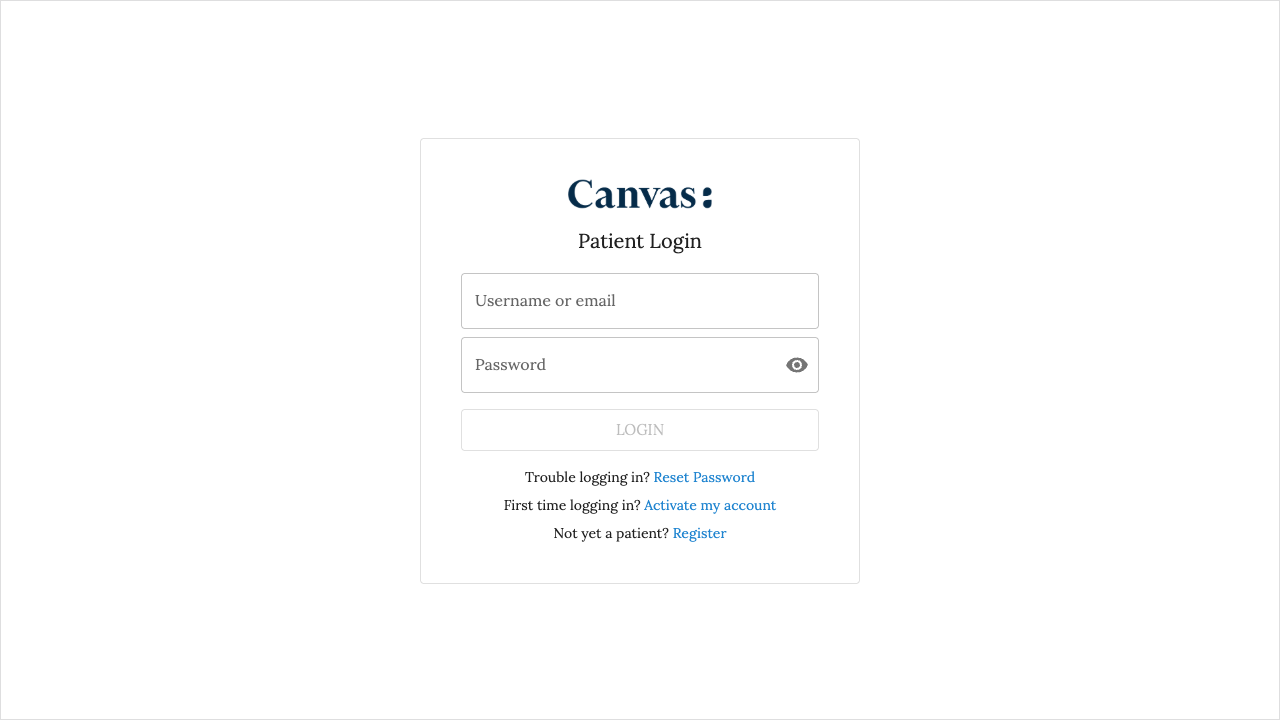
- The font applies to titles, menus, cards, buttons, tabs, form fields, notices and questionnaire forms.
- Write the family name without quotes, also for multi-word names such as
Open Sans. font_sourcemust be a Google Fonts stylesheet (https://fonts.googleapis.com/css2?...), and it needsfont_family.- To use a font the browser already has, such as
Georgia, set onlyfont_family.
person_word #
The word the portal uses for the person who signs in: "patient", "member" or "client".
PatientPortalTheme(person_word="member")
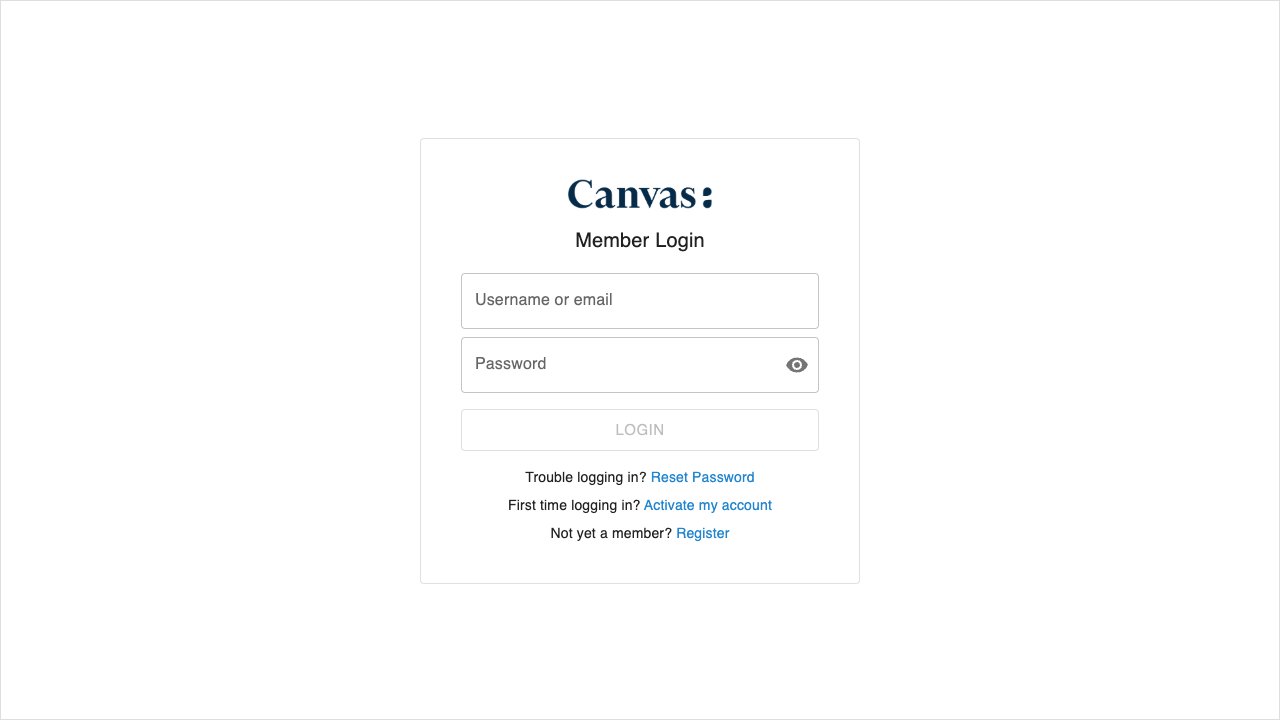
It changes the login heading (“Member Login”), the registration heading (“Member Registration”), the registration prompt (“Not yet a member?”) and the registration page’s sign-in prompt (“Already a member?”). Emails keep the word “patient”.
custom_css #
Your own CSS, for changes the other attributes do not cover.
PatientPortalTheme(
    custom_css=(
        ".ui.card, .MuiAccordion-root { border: 2px dashed #6D28D9 !important; } "
        "h1 { text-transform: uppercase; letter-spacing: 0.08em; }"
    ),
)
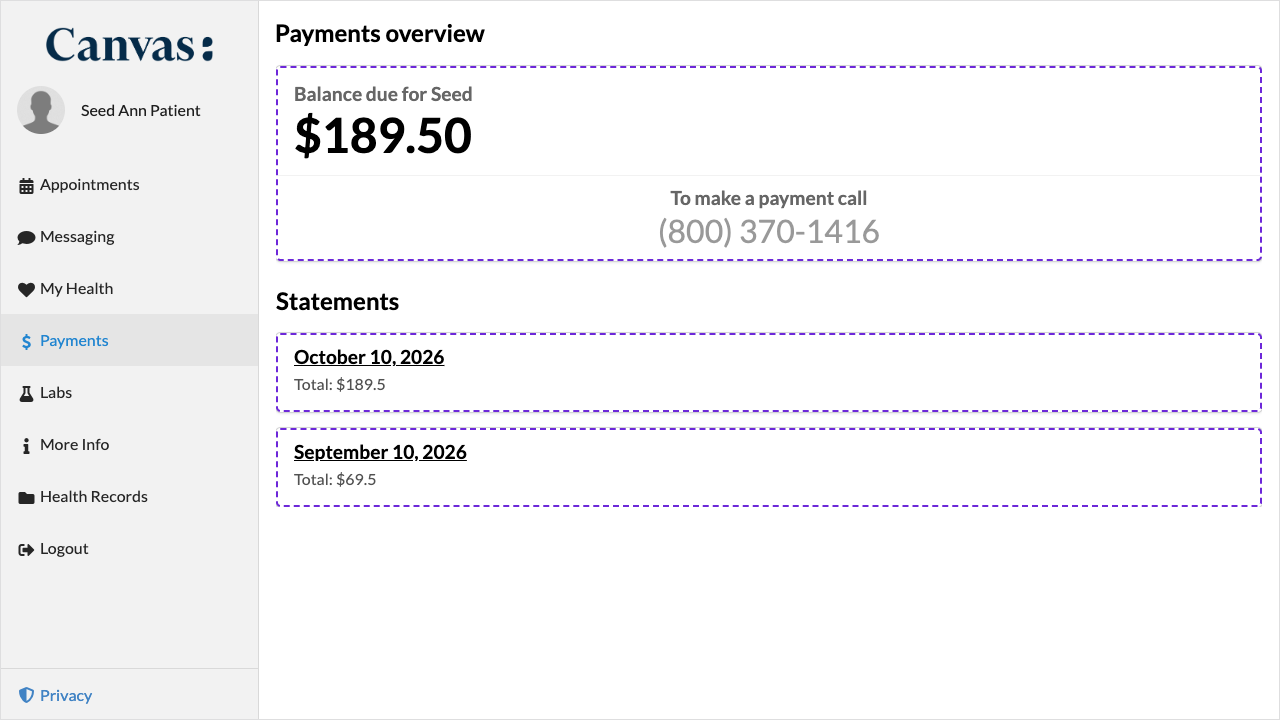
- Custom CSS applies on signed-in portal pages only. The login, registration, password reset and verification pages never get it, so a rule cannot hide or cover the sign-in form.
- It must not make the browser fetch anything. It cannot contain
<,url(),@import,image-set(),@font-faceor backslash escapes. Load fonts withfont_familyandfont_source. - It loads after the portal’s own styles, so it wins over them.
Choose readable colors #
apply() checks each value’s format but not its color contrast, so test your colors with a contrast checker before you install the theme. For normal text, WCAG 2 AA needs a ratio of at least 4.5:1. Check these pairs:
- Menu text on the menu background, and on the selected item’s background.
- Body text on the page background.
- The brand color on the page background and on the header bands.
- White text on the brand color, as on primary buttons and sent messages.
The SDK reference lists every pair the portal draws together.
A theme per business line #
The event context carries business_line_id: the ID of the business line in the portal URL’s ?bl= parameter, or None for the whole instance. Return a different theme for a business line:
from canvas_sdk.effects import Effect
from canvas_sdk.effects.patient_portal.theme import PatientPortalTheme
from canvas_sdk.events import EventType
from canvas_sdk.handlers import BaseHandler

BUSINESS_LINE_THEMES = {
    "4f1c2c6e-4b47-4a8e-9a43-2f1f6e7b9c10": {"brand_color": "#1D4ED8", "person_word": "client"},
}
DEFAULT_THEME = {"brand_color": "#0F766E"}


class PortalTheme(BaseHandler):
    """Give each business line its own theme."""

    RESPONDS_TO = EventType.Name(EventType.PATIENT_PORTAL__GET_THEME_CONFIGURATION)

    def compute(self) -> list[Effect]:
        """Return the business line's theme, or the instance theme."""
        business_line_id = (self.event.context or {}).get("business_line_id")
        tokens = BUSINESS_LINE_THEMES.get(business_line_id, DEFAULT_THEME)
        return [PatientPortalTheme(**tokens).apply()]
A page without ?bl=, or with an inactive business line, gets the instance theme.
Test your theme #
apply() raises the same validation errors in a test, so you can check a theme before you install it:
from canvas_sdk.effects.patient_portal.theme import PatientPortalTheme


def test_theme_is_valid() -> None:
    """The theme passes the portal's format checks."""
    PatientPortalTheme(brand_color="#0F766E", page_background_color="#F0FDFA").apply()
Troubleshooting #
| What you see | Why, and what to do |
|---|---|
| A change does not appear | The portal caches each theme for 60 seconds. Wait a minute and reload. |
| The default theme shows | The plugin is disabled, the handler returned no effect, or it raised an error. Check the plugin logs. |
apply() raises a validation error | A value has the wrong format or range. The message names the attribute. |
| Custom CSS does not show on the login page | Custom CSS applies on signed-in pages only, by design. |
| The font does not change | font_source must be a Google Fonts stylesheet, and font_family must match the family it loads, without quotes. |
| Text is hard to read | Check the color pairs in Choose readable colors. |
| The menu logo is hard to see on a dark menu | The logo is the practice’s own image. Upload a light version of the logo for a dark menu. |